Convert MP4 to MP3: How to Extract Audio in Seconds
By ytmp3converter • October 8, 2026
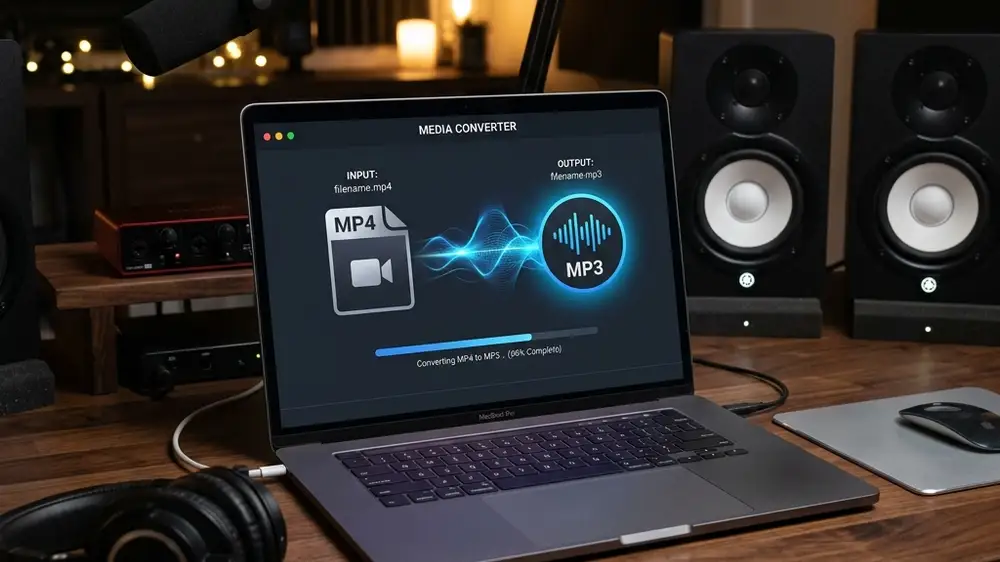
Quick answer: To convert MP4 to MP3, upload your file to a browser converter, or use desktop tools like VLC (
Media > Convert / Save > Audio - MP3) or FFmpeg (ffmpeg -i input.mp4 -vn output.mp3). The process strips out the video stream and leaves you with a compact audio file playable on any device.
Extracting audio from an MP4 can reduce storage when the video track is not needed. The final MP3 size depends on duration and output bitrate.
Whether you are saving space, stripping soundtrack audio from a video clip, or creating podcasts, extracting audio from video files is quick once you know which tool fits your needs. This guide covers online browser tools, VLC Media Player, FFmpeg command line, phone conversions, and the audio bitrate settings that actually matter.
Table of Contents
- Why Convert MP4 to MP3?
- Method 1: Convert MP4 to MP3 Online (No Software Required)
- Method 2: Convert MP4 to MP3 with VLC Media Player
- Method 3: Convert MP4 to MP3 Using FFmpeg
- Method 4: Convert MP4 to MP3 on Mobile (iPhone & Android)
- Bitrate & Quality Settings That Matter
- MP4 vs MP3: File Size and Container Differences
- Conclusion
- Frequently Asked Questions (FAQ)
Why Convert MP4 to MP3?
MP4 is a multimedia container format designed to store video streams, audio tracks, and subtitles in a single package. MP3 is an audio-only format built specifically for music and speech playback.
Here is why extracting the audio track makes sense:
- Massive Storage Savings: Stripping away the video stream reduces file size by 80% to 90%.
- Universal Hardware Support: MP3 plays natively on car stereos, old media players, smart speakers, and fitness watches without requiring video decoder chips.
- Background Playback: Listening to an MP4 video file on a mobile phone often stops when you lock the screen. An MP3 plays seamlessly in the background.
If you deal with other web media formats like WebM video files, our guide on converting WebM to MP3 covers similar step-by-step extraction workflows.
Method 1: Convert MP4 to MP3 Online (No Software Required)
For quick one-off conversions, browser-based online tools are the fastest option. You do not need to download or install any software.
Step-by-step process:
- Open your web browser and navigate to a reputable online converter (CloudConvert, FreeConvert, or Convertio).
- Click “Select File” or drag your MP4 file into the upload zone.
- Select MP3 as the output format.
- Click the gear icon to set the audio bitrate to 192 kbps or 320 kbps.
- Click Convert and wait a few seconds while the file processes.
- Click Download to save your new MP3 audio track.
When to use online tools: Your MP4 file is under 200 MB and you want the conversion finished in under a minute.
When to skip online tools: Your video contains private personal footage or exceeds 500 MB. For privacy and security details on web converters, read our guide on whether CloudConvert is safe before uploading sensitive recordings.
Method 2: Convert MP4 to MP3 with VLC Media Player
VLC is more than just a media player. It is a free, open-source tool capable of converting audio and video offline on Windows, Mac, and Linux.
You can download VLC directly from the official VLC Media Player project page.
Step-by-step process:
- Open VLC Media Player.
- Click Media in the top menu bar and select Convert / Save (or press
Ctrl + R). - Click the Add button and select your MP4 video file.
- Click the Convert / Save button at the bottom.
- In the Profile dropdown menu, select Audio - MP3.
- Click Browse to set your output destination folder and file name ending in
.mp3. - Click Start.
VLC will process the conversion offline in the background without uploading a single byte to external servers.
If you also work with video format conversions, our guide on converting MKV to MP4 shows how to use VLC for video containers.
Method 3: Convert MP4 to MP3 Using FFmpeg
FFmpeg is the command-line utility powering half the media processing tools on the web. It is fast, lightweight, and handles batch operations effortlessly.
Basic command to convert MP4 to MP3:
ffmpeg -i input.mp4 -vn -c:a libmp3lame -q:a 2 output.mp3Command breakdown:
-i input.mp4: Specifies the input video file.-vn: Disables the video stream completely (extracts audio only).-c:a libmp3lame: Uses the standard LAME MP3 encoder.-q:a 2: Sets variable bitrate quality (VBR ~190-220 kbps, where 0 is highest quality and 9 is lowest).
If you want a fixed 320 kbps bitrate instead, use:
ffmpeg -i input.mp4 -vn -b:a 320k output.mp3For users interested in streaming audio from YouTube sources, our YouTube to MP3 converter guide breaks down similar command-line workflows.
Method 4: Convert MP4 to MP3 on Mobile (iPhone & Android)
You do not need a desktop computer to extract audio from an MP4 clip stored on your phone.
On iPhone (iOS)
- Open Safari and navigate to a browser-based converter.
- Tap Choose File and select Photo Library or Files.
- Choose your MP4 video clip.
- Set format to MP3 and tap Convert.
- Save the resulting MP3 directly into your Files app.
On Android
- Open Chrome and head to a free web converter.
- Select your MP4 video from the Files manager.
- Tap Convert and download the MP3 track to your Downloads folder.
Bitrate & Quality Settings That Matter
When converting MP4 to MP3, selecting the right bitrate balance prevents wasted storage space while maintaining clear audio.
| Bitrate | Quality Level | Best Used For | Typical File Size (5 min) |
|---|---|---|---|
| 128 kbps | Standard | Podcasts, voice notes, spoken lectures | ~4.5 MB |
| 192 kbps | High (Recommended) | General music, youtube videos | ~7.0 MB |
| 256 kbps | Very High | Detailed acoustic tracks, live music | ~9.5 MB |
| 320 kbps | Maximum MP3 Quality | Studio audio, high-end headphones | ~11.5 MB |
For a full deep dive into uncompressed versus lossy audio formats, read our comparison on MP3 vs WAV to understand when higher bitrates make a real difference.
MP4 vs MP3: File Size and Container Differences
Nine times out of ten, people confuse file extensions with audio encoding.
An MP4 file container usually holds H.264 or H.265 video paired with AAC audio. An MP3 file holds raw MPEG-1 Audio Layer III data.
When you convert MP4 to MP3, the converter drops the video frames entirely and converts the underlying AAC audio stream into an MP3 stream. Because video data consumes over 85% of total file bandwidth, removing the video stream dramatically shrinks the file while preserving the original audio track intact.
Conclusion
To convert MP4 to MP3 quickly, use a browser tool for small clips, VLC for offline desktop conversions, or FFmpeg for batch commands. Choose a 192 kbps or 320 kbps bitrate to keep your audio sounding clear while freeing up 80% or more of your disk space.
Frequently Asked Questions (FAQ)
How do I convert an MP4 file to MP3 for free?
You can convert MP4 to MP3 for free using web-based converters, VLC Media Player, or FFmpeg. Drag and drop your MP4 file, select MP3 output at 192 kbps or 320 kbps, and save the exported audio file.
Does converting MP4 to MP3 reduce the file size?
Yes. Stripping out the video track reduces file size by roughly 80% to 90%. A 100 MB MP4 video file typically yields an MP3 audio file under 10 MB.
Will converting MP4 to MP3 lose sound quality?
Extracting AAC or MP3 audio from MP4 without re-encoding preserves full quality. Re-encoding lossy AAC audio into lossy MP3 causes minor quality loss, though setting bitrate to 256 kbps or 320 kbps makes it imperceptible to human ears.
Can I convert MP4 to MP3 using VLC Media Player?
Yes. In VLC, go to Media > Convert / Save, add your MP4 video file, choose ‘Audio - MP3’ under Profile, set your destination folder, and click Start.
How do I convert MP4 to MP3 on an iPhone or Android phone?
Open a browser-based converter like CloudConvert or FreeConvert on your phone, upload the MP4 file from your Photos or Files app, tap convert to MP3, and save the audio track.
What command line converts MP4 to MP3 using FFmpeg?
Run ffmpeg -i input.mp4 -vn -c:a libmp3lame -q:a 2 output.mp3 in your terminal. The -vn flag disables video processing, extracting a clean VBR MP3 audio track.